FLUF Connect Safari Extension
The official FLUF Connect extension for Safari on Mac — crosslist, edit and sync your marketplace listings from one dashboard, without sharing your passwords.

- What it is: The official FLUF Connect extension for Safari on Mac, installed from the Mac App Store as Crosslist: FLUF Connect
- Why you need it: A few marketplaces connect through your own browser to keep your account safe — the extension handles that quietly in the background
- What you get: Crosslisting, edits, price changes, delisting and inventory sync — all driven from one dashboard
- Privacy: FLUF never sees or stores your marketplace passwords. You sign in to each marketplace as normal in Safari.
- Cost: The extension is free. A FLUF Connect plan is required to use it — see plans
- Works on: Safari on a Mac running macOS Ventura (13) or later. Not iPhone or iPad — use the FLUF Connect app there.
What the FLUF Safari Extension Does
The FLUF Connect Safari extension links Safari to your FLUF Connect dashboard. Once it is on, you can crosslist products, sync inventory, change prices and delist items across the marketplaces you sell on, all from one dashboard at fluf.io/connect.
It is the same extension as the Chrome, Edge and Firefox versions, with the same features. If you sell from a Mac and prefer Safari, you no longer need a second browser just for FLUF.
- Crosslist an item from FLUF (or from a connected store like Shopify) to several marketplaces in one click
- Edit listings — price, description, photos — once in FLUF, and the change reaches every marketplace
- Delist items in bulk or one by one without logging in to each marketplace
- Inventory sync — when an item sells on one marketplace, FLUF removes it from the others so you don’t sell it twice
- Auto-relist older items to keep them fresh in marketplace feeds
How to Install on Safari (4 Steps)
Safari extensions come from the Mac App Store as a small app. You install the app once, then switch the extension on in Safari.
- Get Crosslist: FLUF Connect from the Mac App Store and open it from your Applications folder.
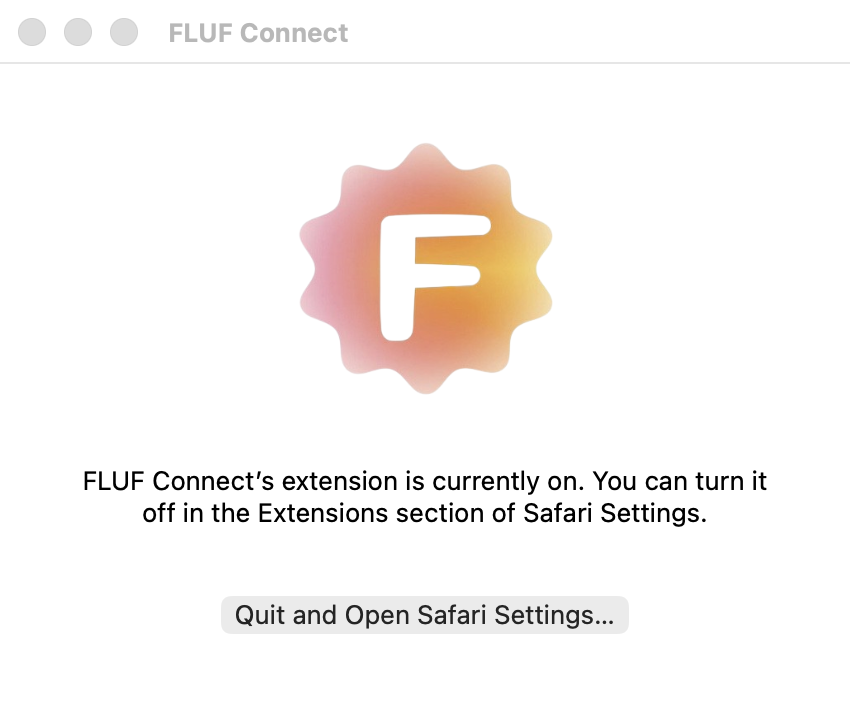
- Click “Quit and Open Safari Settings…” in the window that appears. Safari opens on its Extensions page.
- Tick FLUF Connect in the list to switch it on. When Safari asks which websites it may use, allow fluf.io and the marketplaces you sell on (or choose Always Allow on Every Website).
- Sign in to FLUF Connect at fluf.io/connect in Safari, then connect your marketplaces from the Channels page. For a few marketplaces you’ll be asked to log in in a Safari tab — that’s all the setup there is.
If Safari Doesn’t Show FLUF
- Not in the Extensions list? Open the Crosslist: FLUF Connect app once. Safari only lists an extension after its app has been opened.
- Ticked, but FLUF says the extension isn’t installed? Safari is still waiting for website access. Click the FLUF icon next to the address bar while you’re on fluf.io and allow it, then reload the page.
- A marketplace won’t connect? Make sure you’re logged in to that marketplace in Safari, not only in another browser. Safari keeps its own sign-ins.
- Using Chrome as well? That’s fine. Each browser keeps its own copy and its own sign-ins, so pick the one you sell from most and connect your marketplaces there.
Install the FLUF Safari Extension
Free to install. Works with your existing FLUF Connect account.
Updating and Removing the Extension
The Mac App Store updates the extension with your other apps. To update straight away, open the App Store, click Updates and update Crosslist: FLUF Connect. Updating never disconnects your marketplaces.
To switch it off, untick FLUF Connect in Safari > Settings > Extensions. To remove it completely, drag the Crosslist: FLUF Connect app from Applications to the Bin (Trash). Your FLUF Connect account, listings and history aren’t affected.
Privacy & Account Safety
- FLUF never sees your marketplace passwords. You log in to each marketplace in Safari, the same way you always have.
- No central credential store to be breached. Because passwords aren’t stored on our servers, there’s nothing for an attacker to steal.
- You decide which websites it can use. Safari asks before the extension touches any site, and you can change that at any time in Safari > Settings > Websites > Extensions.
The extension only acts on the marketplaces you connect and on fluf.io. It doesn’t read or change your banking, email or any other sites.
Using a different browser?
FLUF is also on the Chrome Web Store, Microsoft Edge Add-ons and Firefox Add-ons — see every supported browser. To manage listings on your iPhone, iPad or Android phone, use the FLUF Connect mobile app:


Frequently Asked Questions
Yes. The extension is free to install and use. You need a FLUF Connect account to use it, and paid plans cover higher volumes.
From the Mac App Store, where it is called Crosslist: FLUF Connect. Safari extensions are installed as a small Mac app; open it once, then switch the extension on in Safari > Settings > Extensions.
No. It is the same extension with the same features as the Chrome, Edge and Firefox versions.
Any Mac running macOS Ventura (13) or later, in Safari. It does not run on iPhone or iPad; on those, use the FLUF Connect mobile app.
Safari needs permission to use the extension on fluf.io. Click the FLUF icon next to the address bar while on fluf.io, allow it, and reload the page.
FLUF never sees or stores your marketplace passwords. You stay logged in to each marketplace in your own browser, the same way you always have, and FLUF manages your listings from there — there's no central credential store on our end.
The Mac App Store updates it with your other apps. To remove it, untick it in Safari > Settings > Extensions, or drag the Crosslist: FLUF Connect app to the Bin. Your FLUF account and listings are not affected.
Sign up for free
Join the community
You're in.
Open your dashboard